Using Hotkeys to Quickly Adjust Multiple Channels | IPEmotion
I. Background and Challenges
| Background:
As automotive testing complexity continues to increase, both new energy vehicles and traditional vehicles require synchronous collection and analysis of massive sensor and bus signals for various functional tests. Test engineers often need to configure dozens or even hundreds of data acquisition channels on test benches or actual vehicles to comprehensively monitor vehicle status.
In this process, ensuring the accuracy and reliability of data from each acquisition channel is the cornerstone for obtaining valid test conclusions, and channel adjustment is a critical step in pre-test preparation and in-test maintenance. When faced with a large number of channels that need zero adjustment, users can simplify the channel adjustment process using IPEmotion's setting hotkeys. In addition, users can also set offsets for specific channels, and this function can also be implemented using hotkey.
II. Solutions
1. Module Detection
Open the IPEmotion software and click "Detect" to perform the detection.
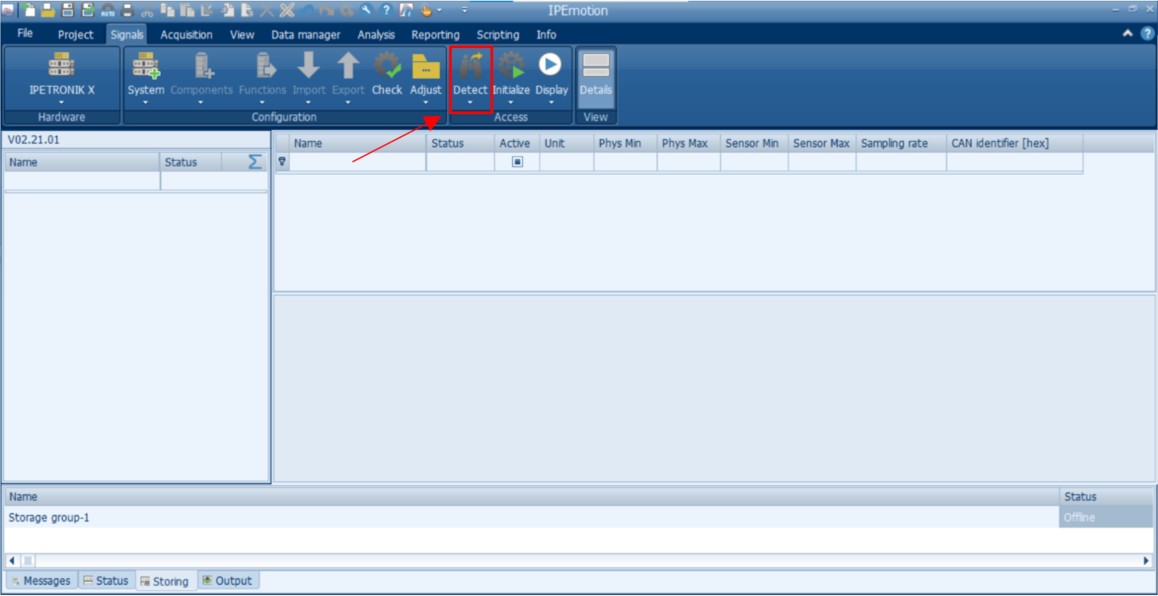
(Figure 1 Module Detection)
2. Set Offset
In the "Offset" of the "Adjust" column on the Signal page, where Channel adjustments can be configured, adjustment groups for channels can be set and manual adjustments can also be performed.
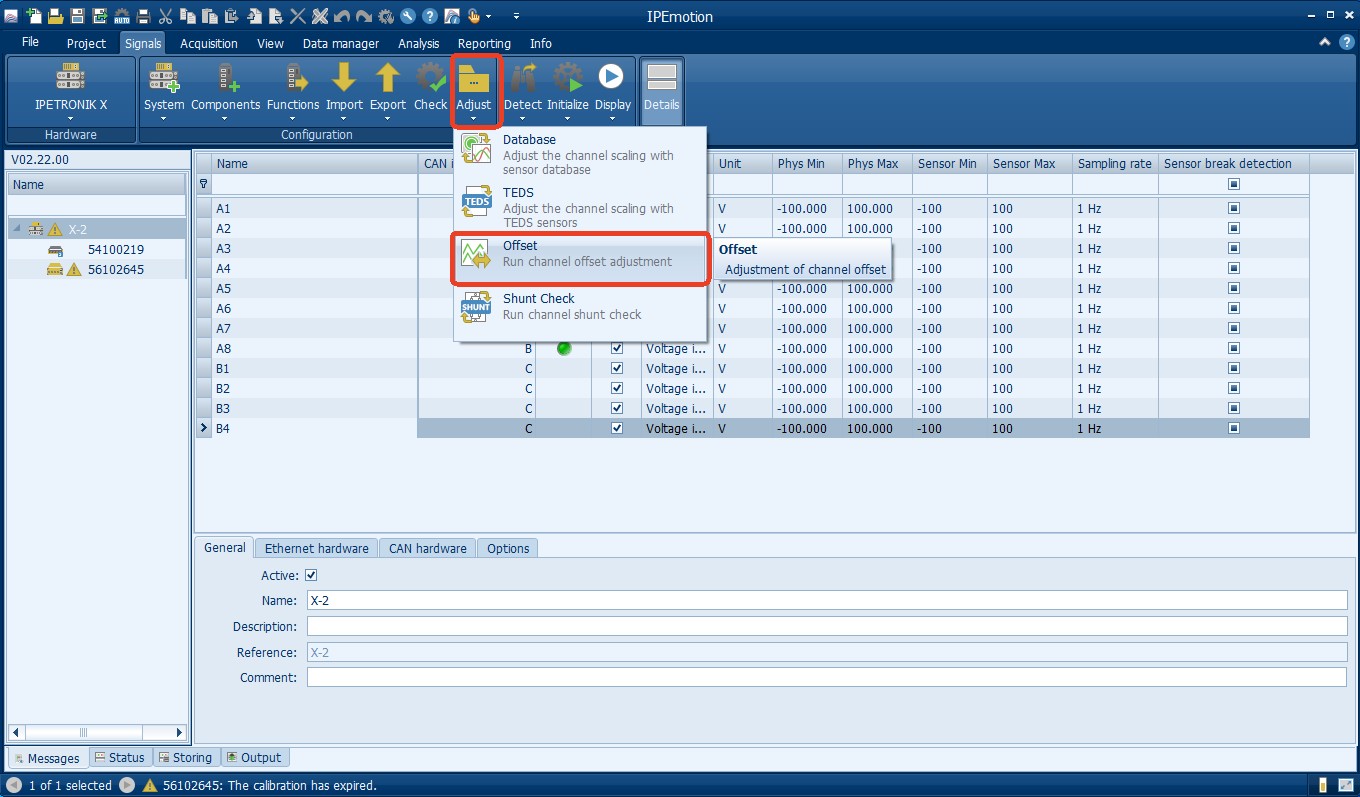
(Figure 2 Open Adjustment Group Settings)
Change the offset of specific channels in the "Reference value" section. The default value is 0, and multiple channels can be selected for simultaneous changes.
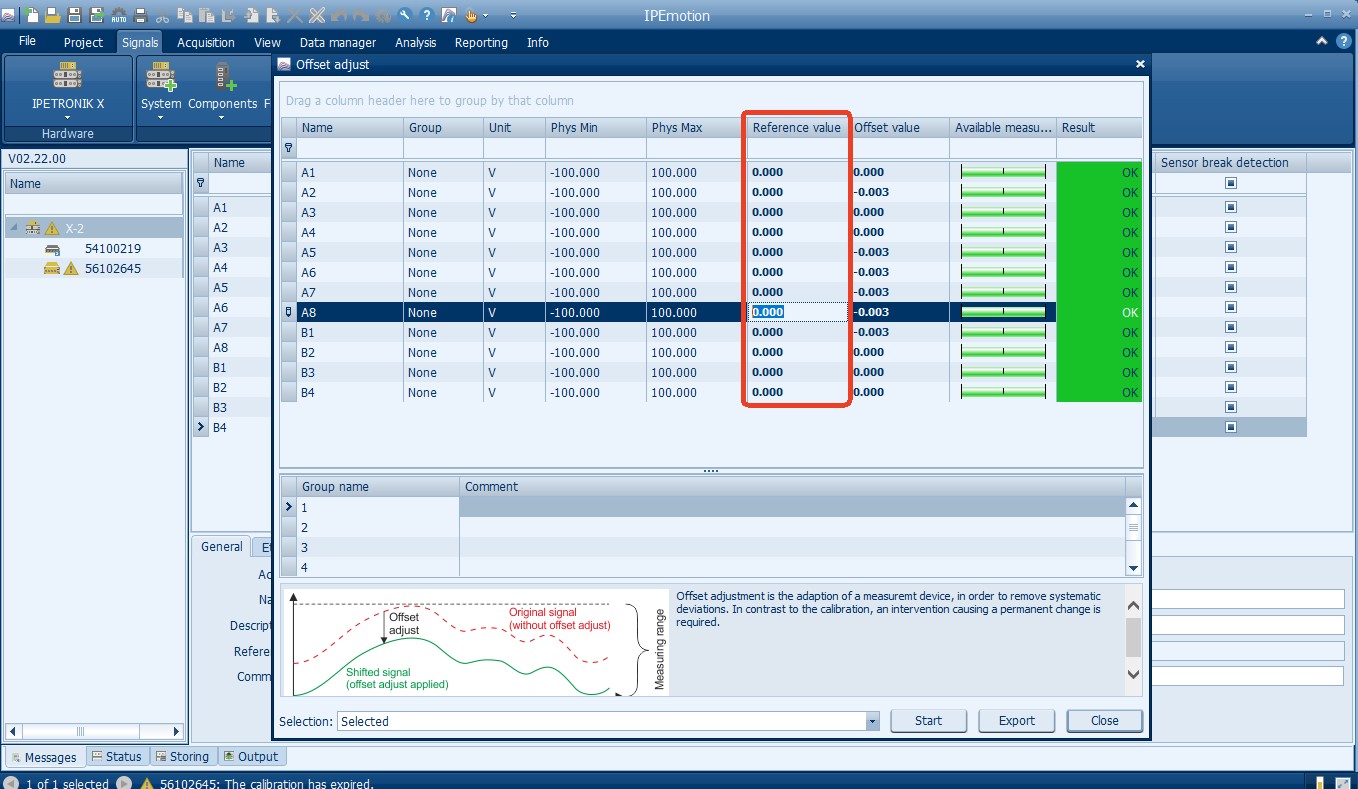
(Figure 3 Setting Offset)
In the "Group" section, change the channel's adjustment group, multiple channels can be selected to change simultaneously.
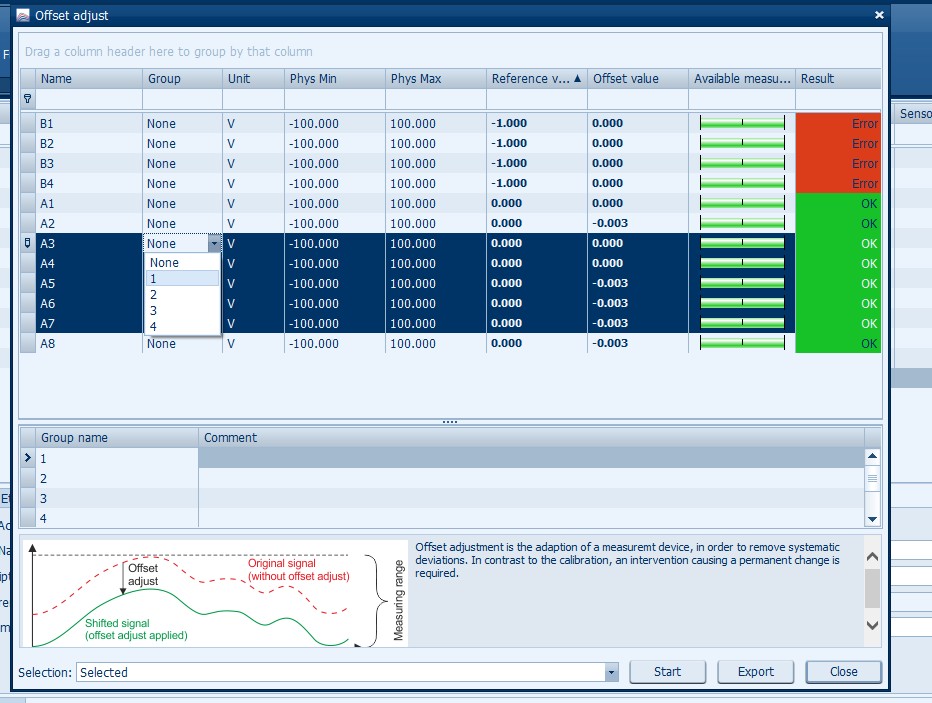
(Figure 4 Adjustment Group for Channel Settings)
After modifying the relevant settings, the "Result" field of the channel will turn red and display "Error".
Select the option to be adjusted in the "Selection" section and click "Start" to adjust the offset of the corresponding channel based on the Reference value. When the Reference value is 0, the channel will be zeroed.
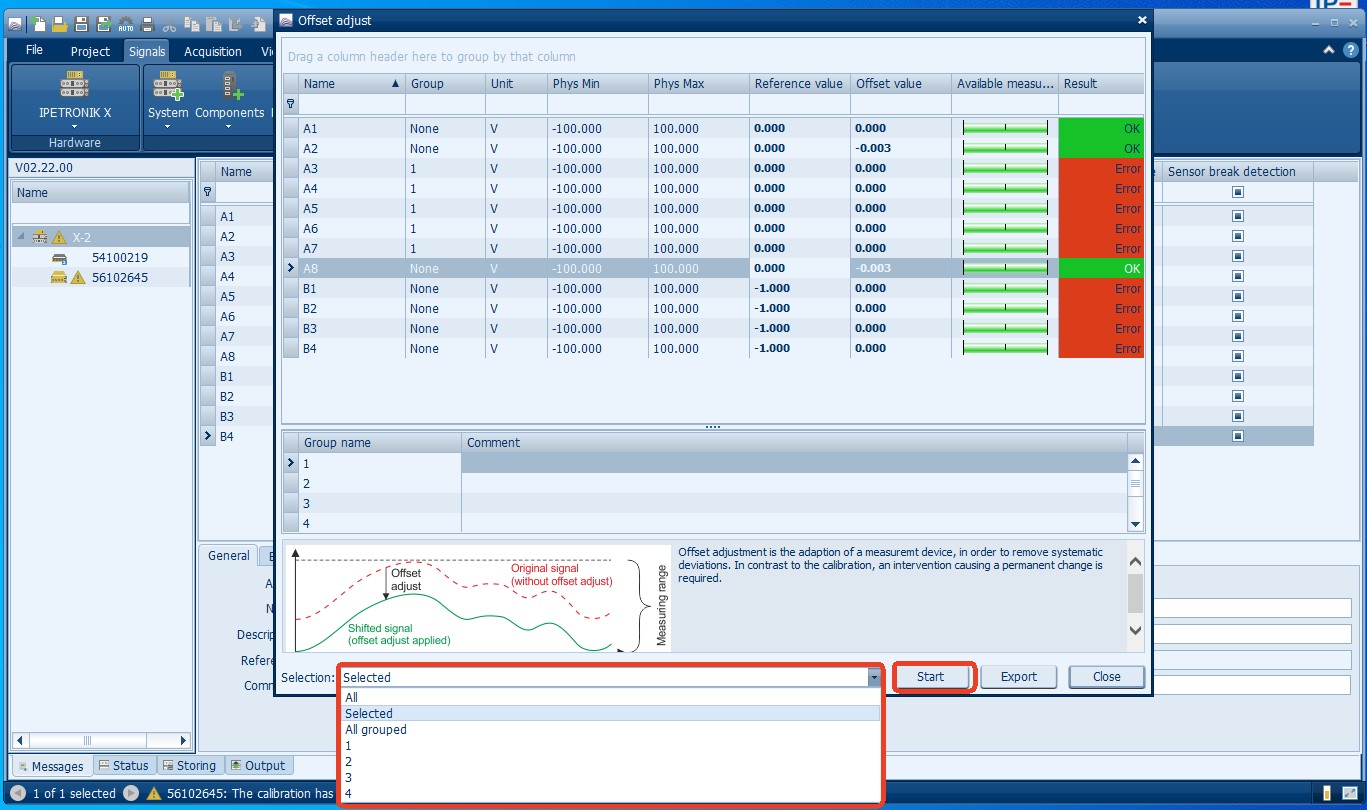
( Figure 5 Setting Adjustment Group to Adjust)
After adjustment, the "Result" field will turn green and display "OK".
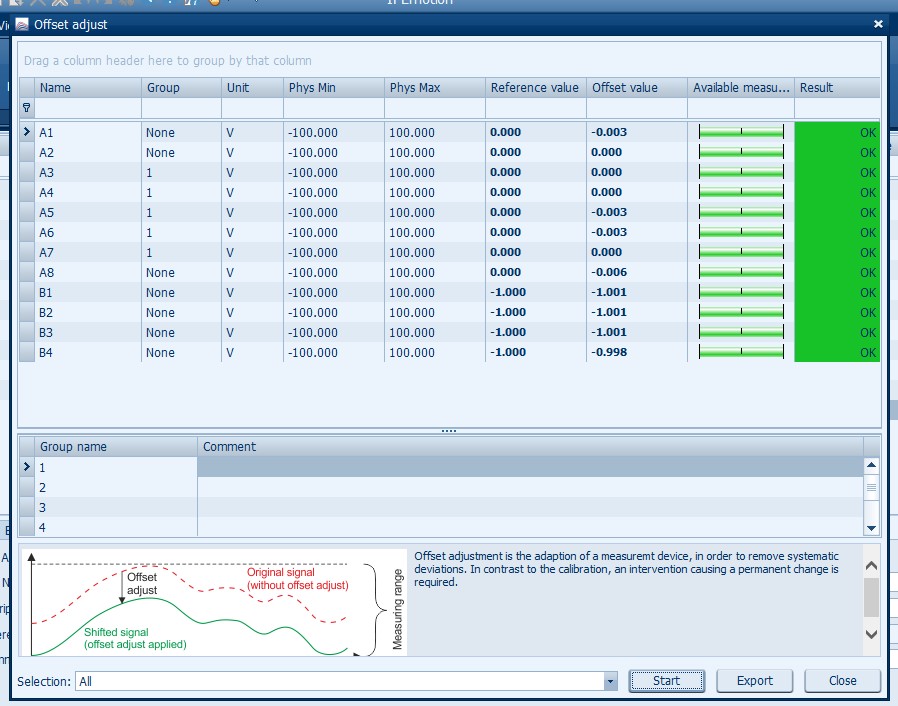
(Figure 6 Status After Adjustment)
3. Add Hotkey for Quick Adjustment
Click the options icon, select Hotkey, click the "*" icon to add a hotkey.
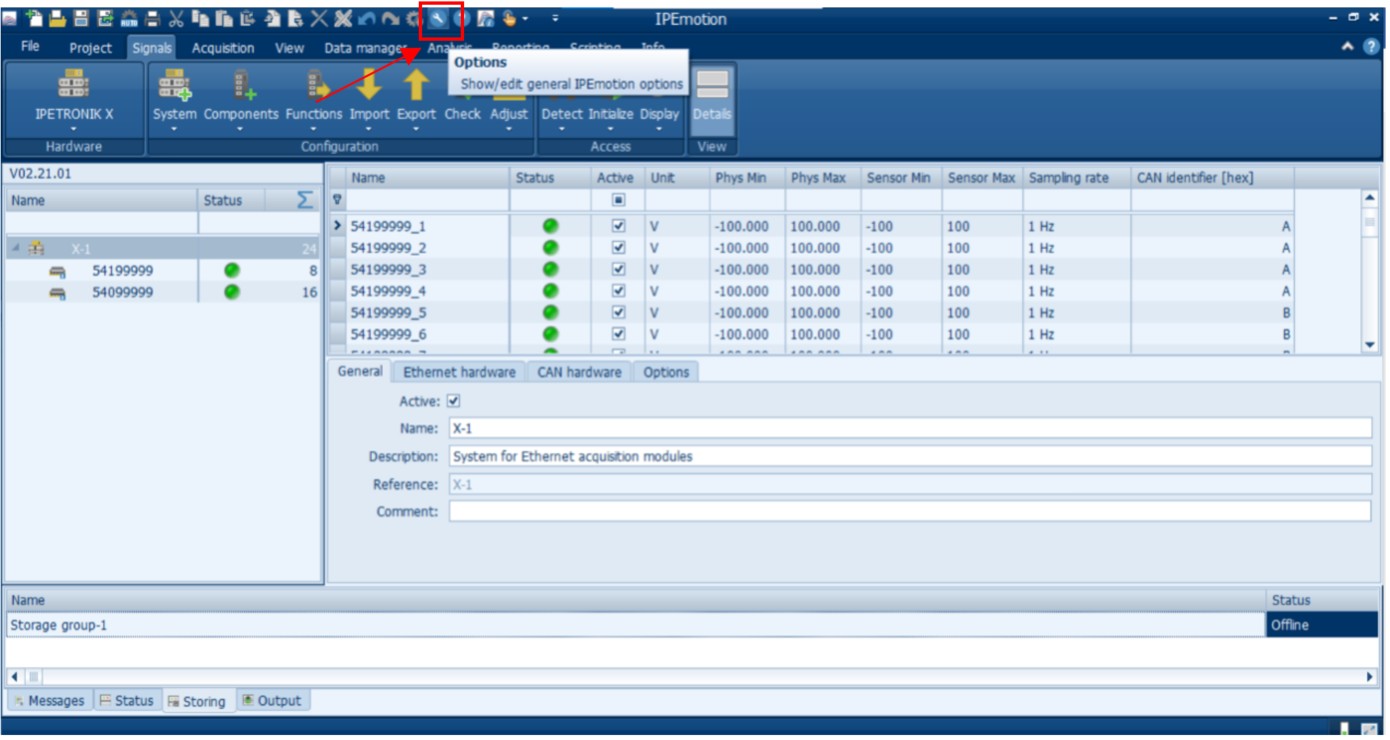
(Figure 7 Open Options)
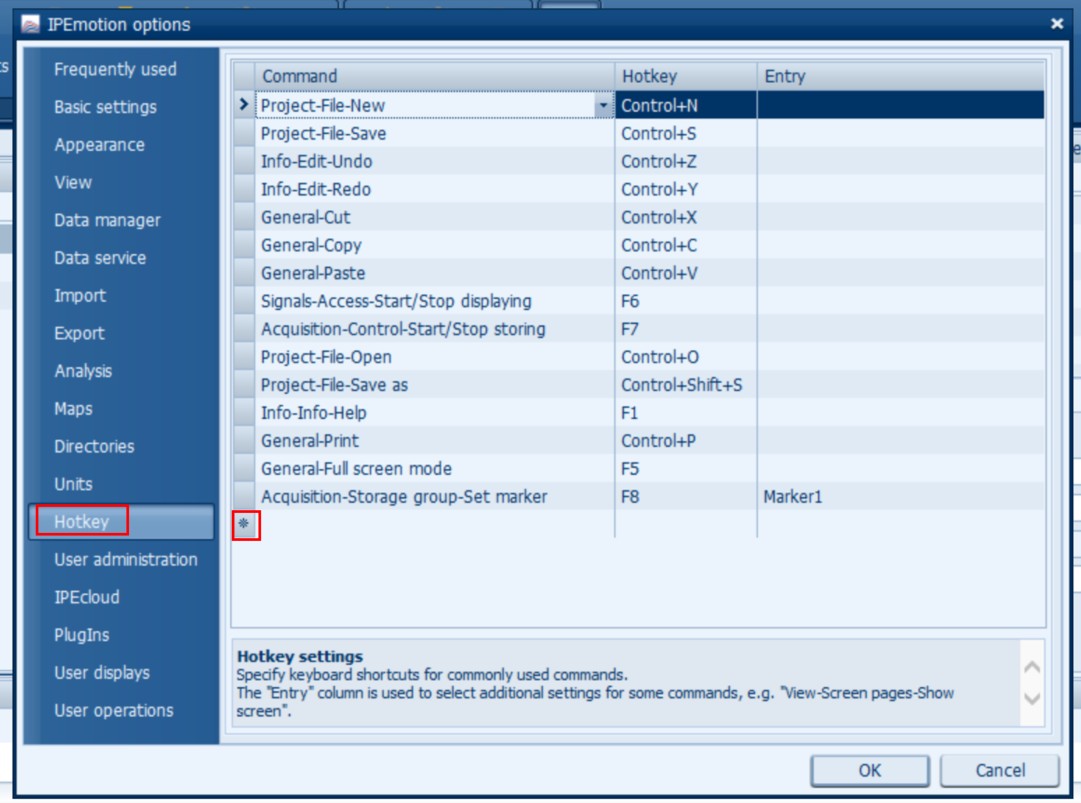
(Figure 8 Setting Hotkeys)
Set hotkeys: Select "Signals Offset Adjust" from the "Command" column and double-click.
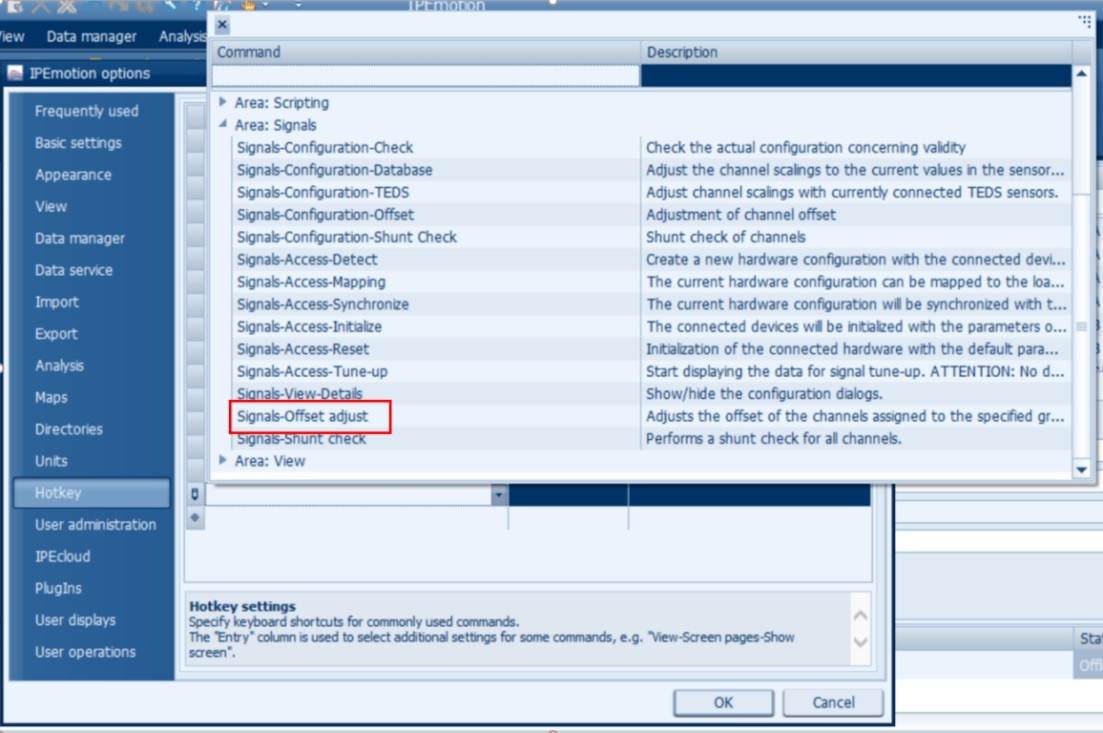
(Figure 9 Setting Function)
Select the "Hotkey" column and enter the desired hotkey ("Control+1" is used as an example here) on the keyboard.
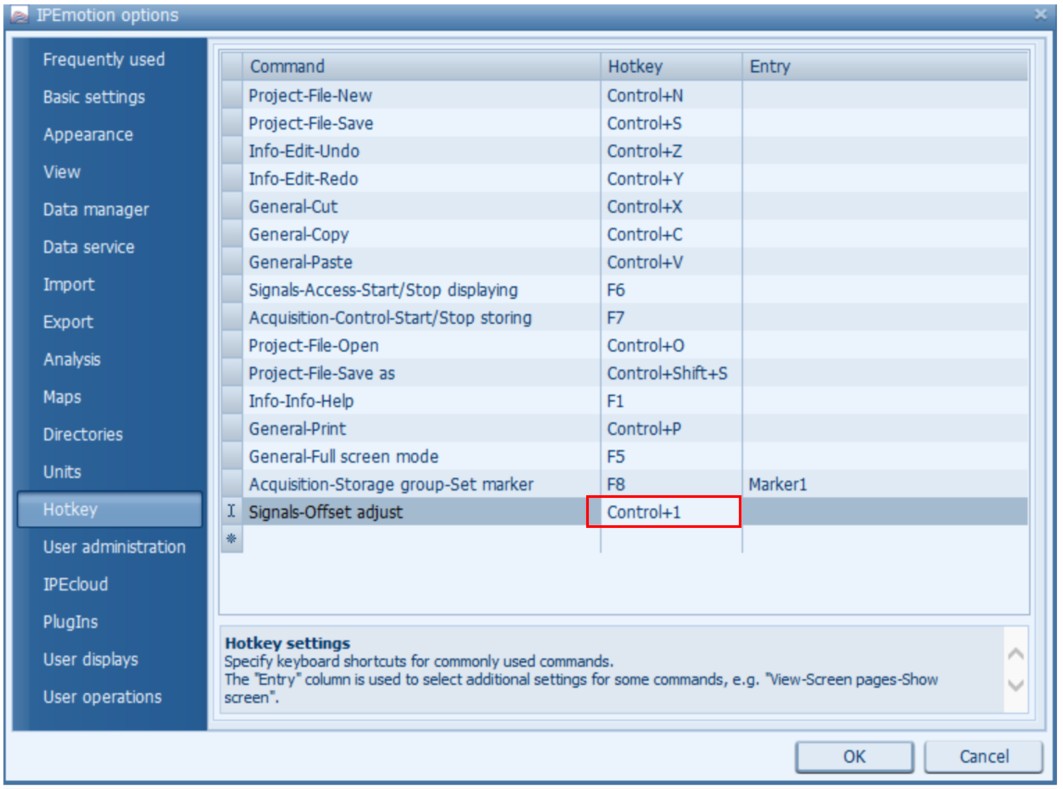
(Figure 10 Typing Hotkeys)
Select the "Entry" column and choose the adjustment group to be adjusted when pressing this hotkey. If you want to adjust all channels, simply select "All". If you want to zero specific channels, you can select adjustment groups 1, 2, 3, and 4.
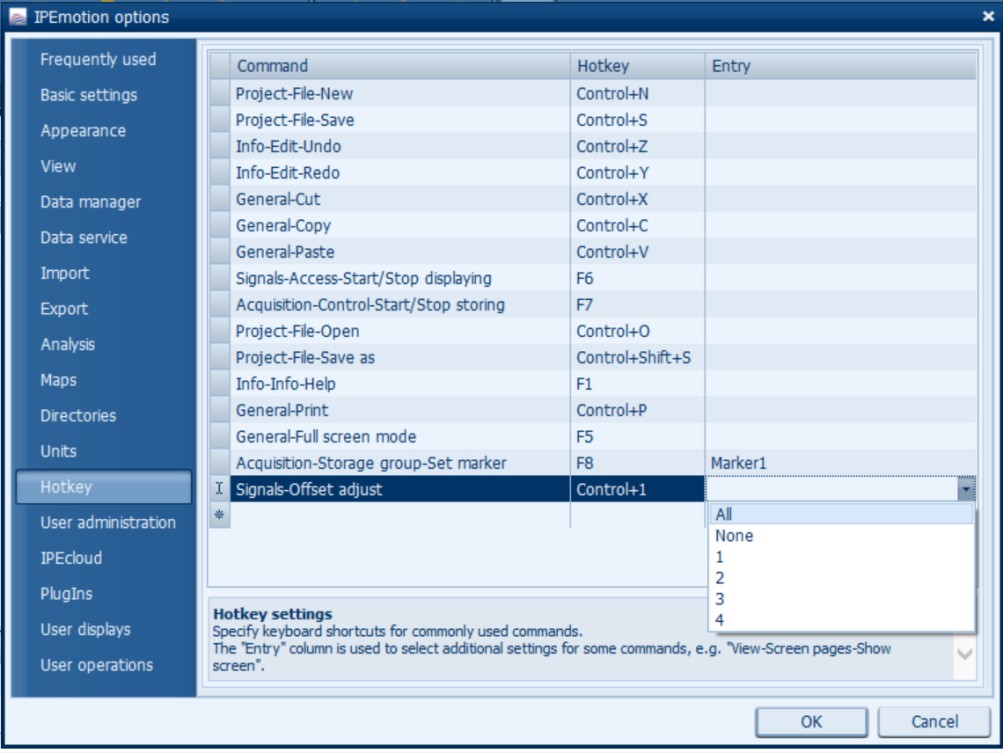
(Figure 11 Select the Adjustment Group for the Hotkey)
4. Hotkey Effect
After configuration is completed, press the previously set hotkey to quickly perform zero adjustment or offset adjustment for multiple channels.
As in the example in this tutorial: as shown in the figure below, channels A1-8 need zero adjustment, and channels B1-4 need to be set to an offset of -1.
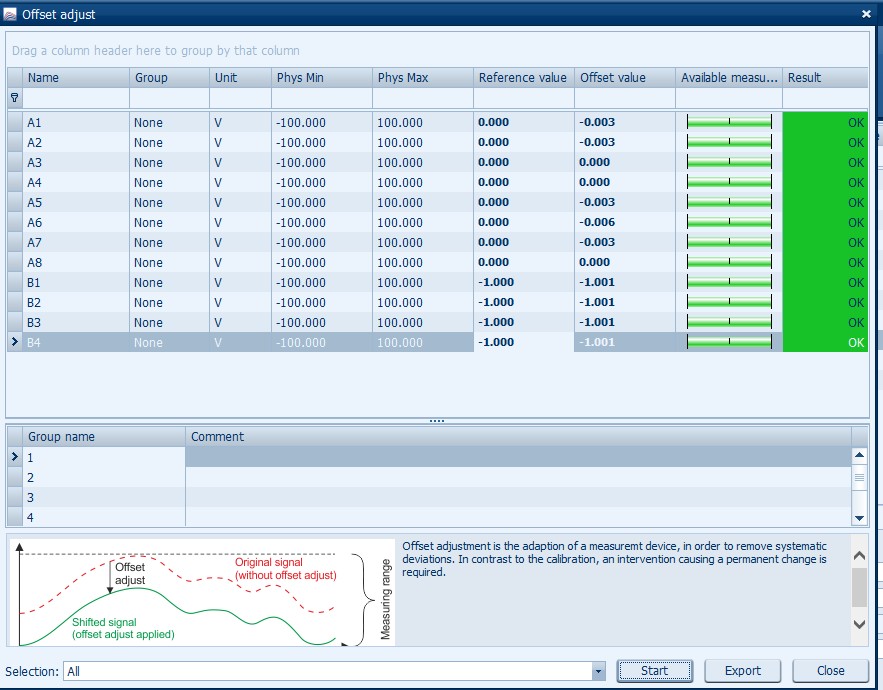
(Figure 12 Schematic Diagram of Relevant Settings)
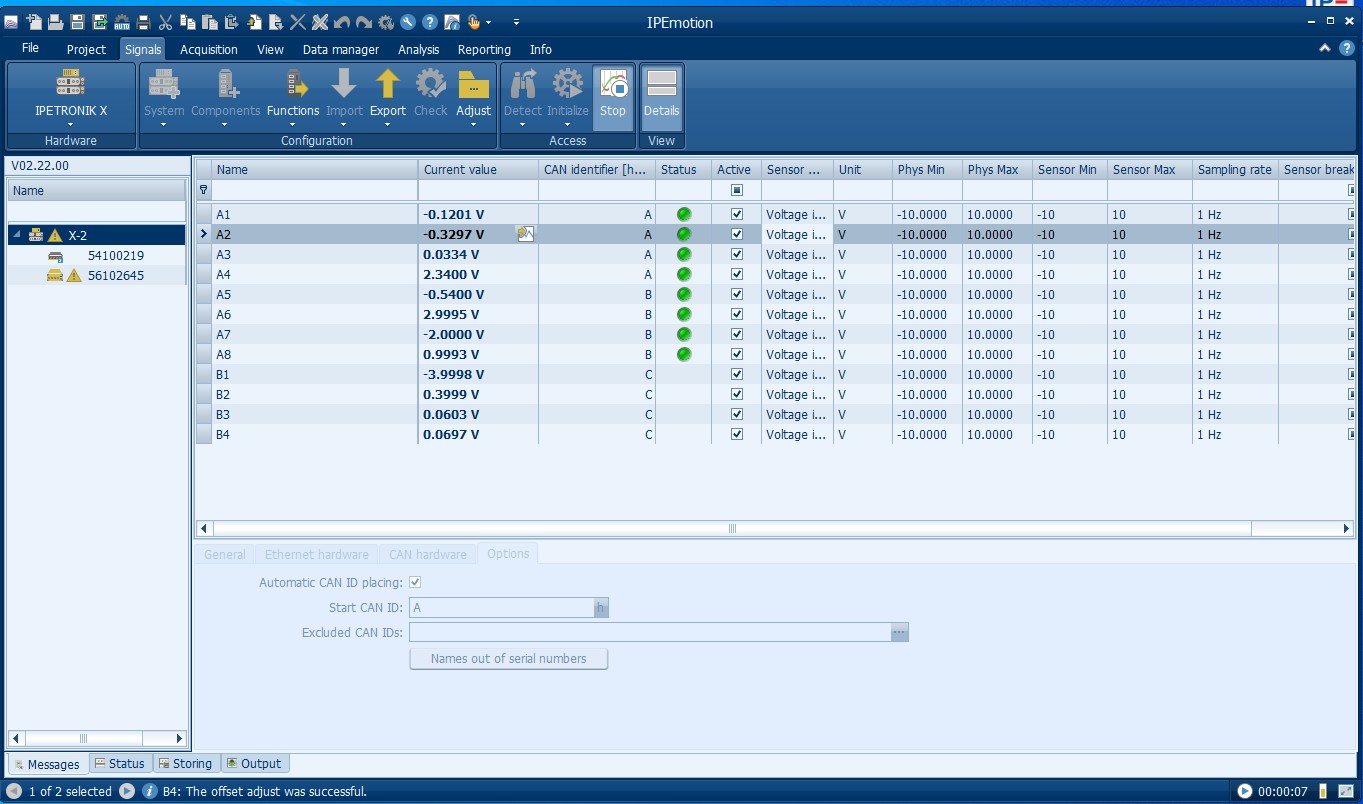
(Figure 13 Channels that Require Adjustment)
After pressing the configured hotkey "Control+1", all channels will be adjusted according to the relevant settings.
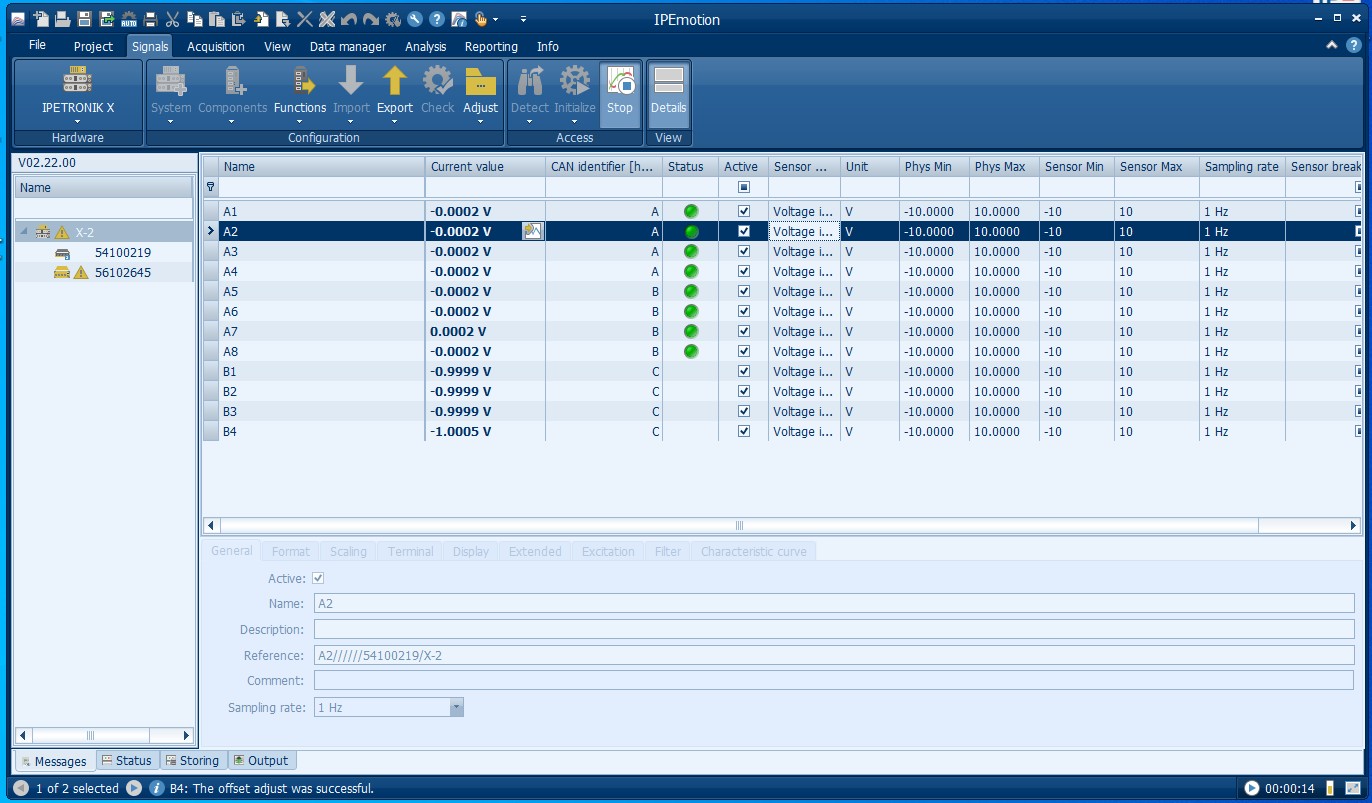
(Figure 14 Effect after Pressing the Hotkey)
Previous Updates
▶ Accelerate Vehicle Development - WINDHILL Road Load Data Acquisition (RLDA) Test Solution